Adding sections and elements
Add ready-made sections, columns, text, images, videos, maps and forms to your page.
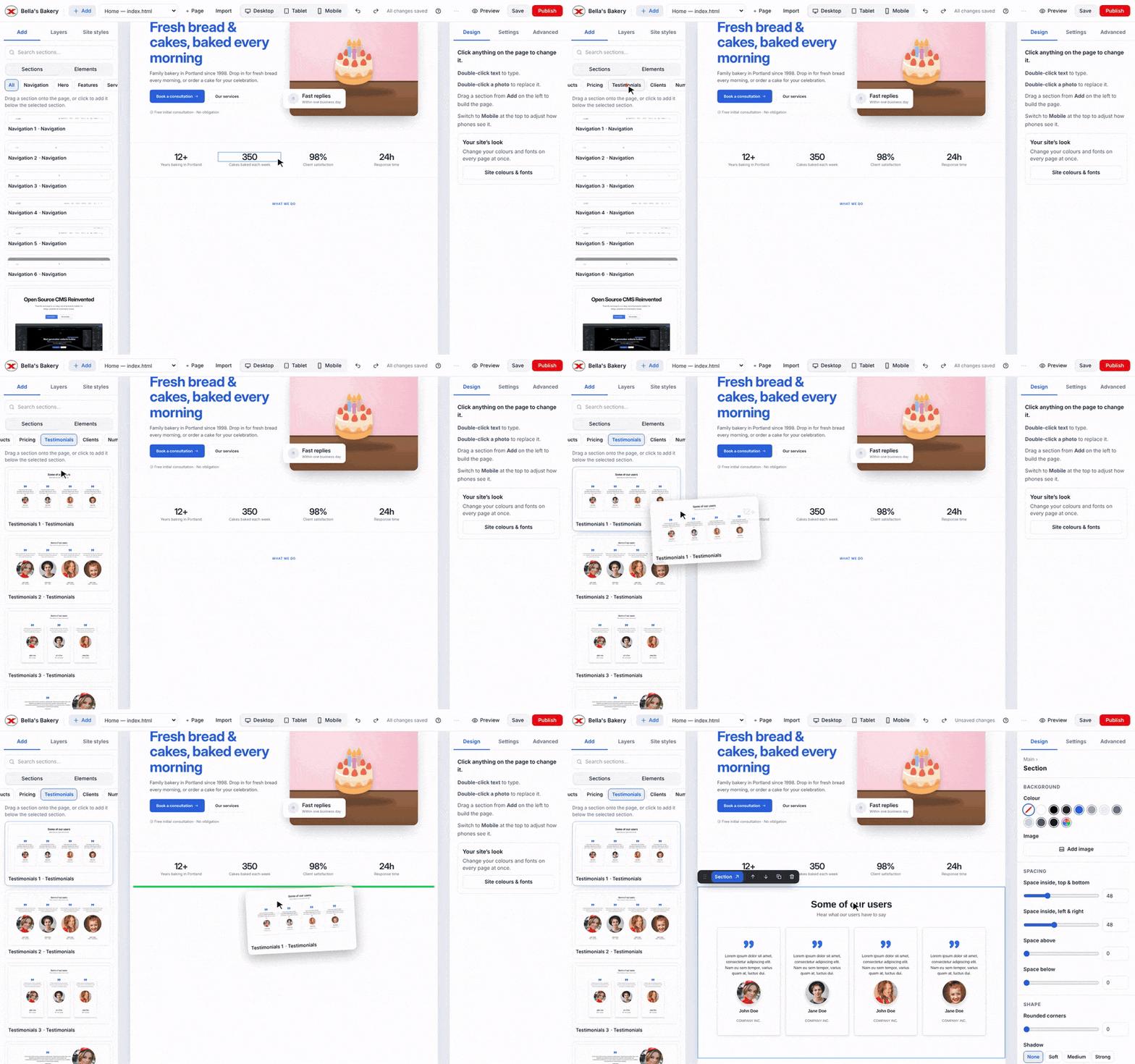
- Open Add on the left (click Add in the toolbar if the panel is hidden).
- Under Sections, pick a type like Hero, Pricing or Testimonials, or search for one.
- Click a section to add it below the one you've selected (or at the end of the page). Or drag it onto the page, and a green line shows where it will land.
The new section is selected and scrolled into view, ready for your text and pictures.
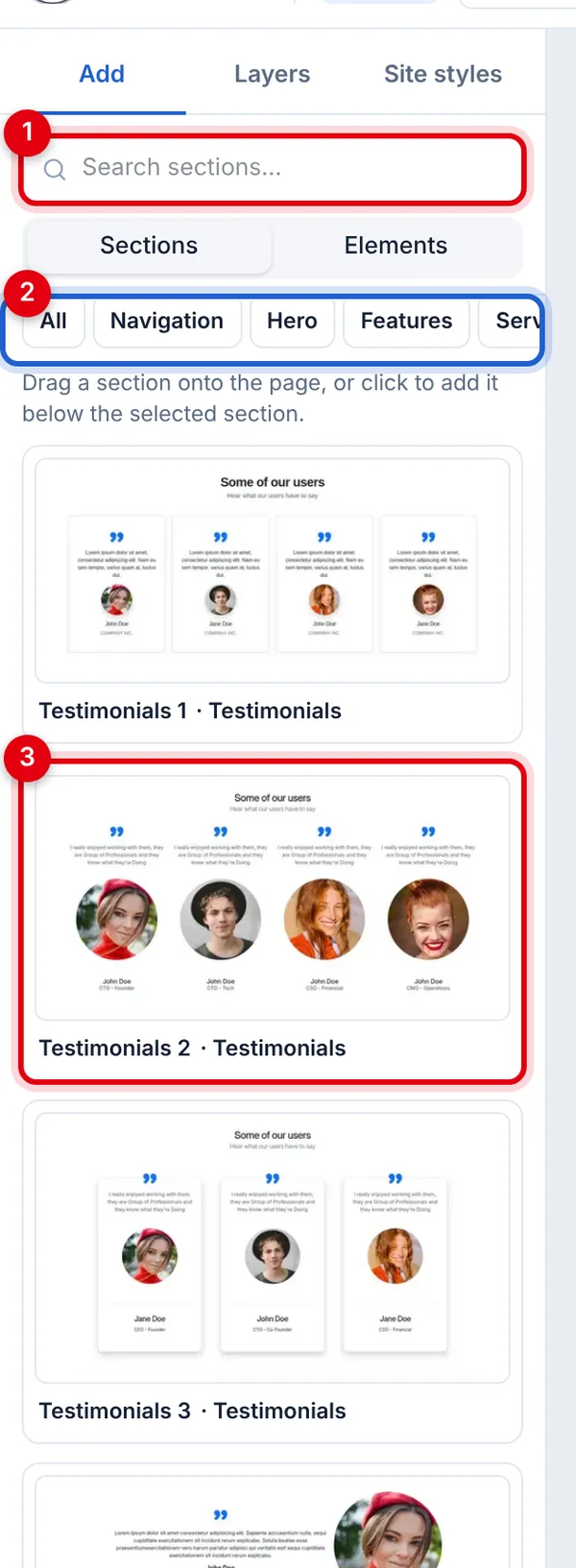
- Search sections by name or type.
- Section types: All, Navigation, Hero, Features, Pricing, Testimonials, FAQ, Footer and more.
- A picture of each section, so you can see it before you add it.
Elements
Switch to Elements for single pieces you can put anywhere:
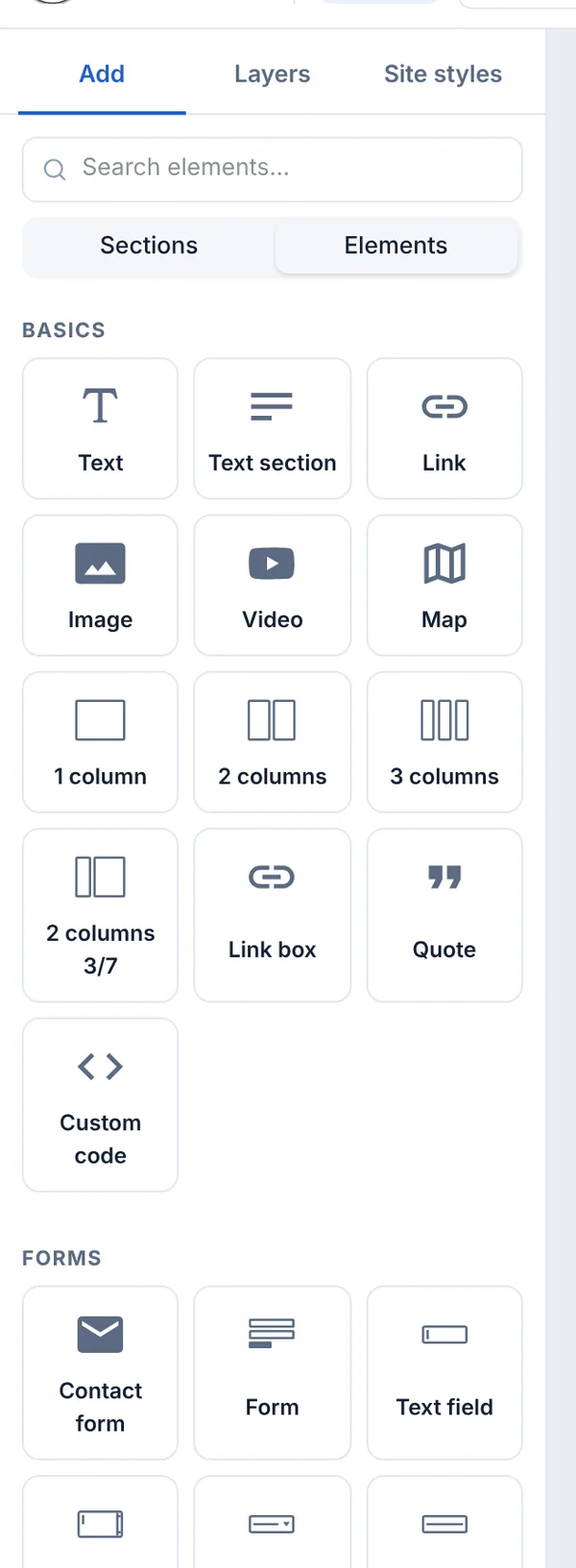
- Basics: text, link, image, video, map, columns, quote and custom code.
- Forms, including a ready-to-use Contact form.
Drag an element into a column or section to put it inside it, and watch the green line.
Tips
- To move a section, select it and use Move up and Move down on its toolbar. Or drag the handle on the left of the toolbar, or drag it in Layers.
- To duplicate a section you've already styled, select it and click Duplicate.
- The Custom code element takes embed code from other services, such as booking widgets, maps and social feeds. It runs on the published site, not in the editor, so use Preview to see it working.
Updated Nov 4, 2026, 2:59 PM
Didn’t find what you need? Contact support.