Missing images
What to do when pictures don't appear in the editor, the preview or the live site.
On a site copied with "Layout only"
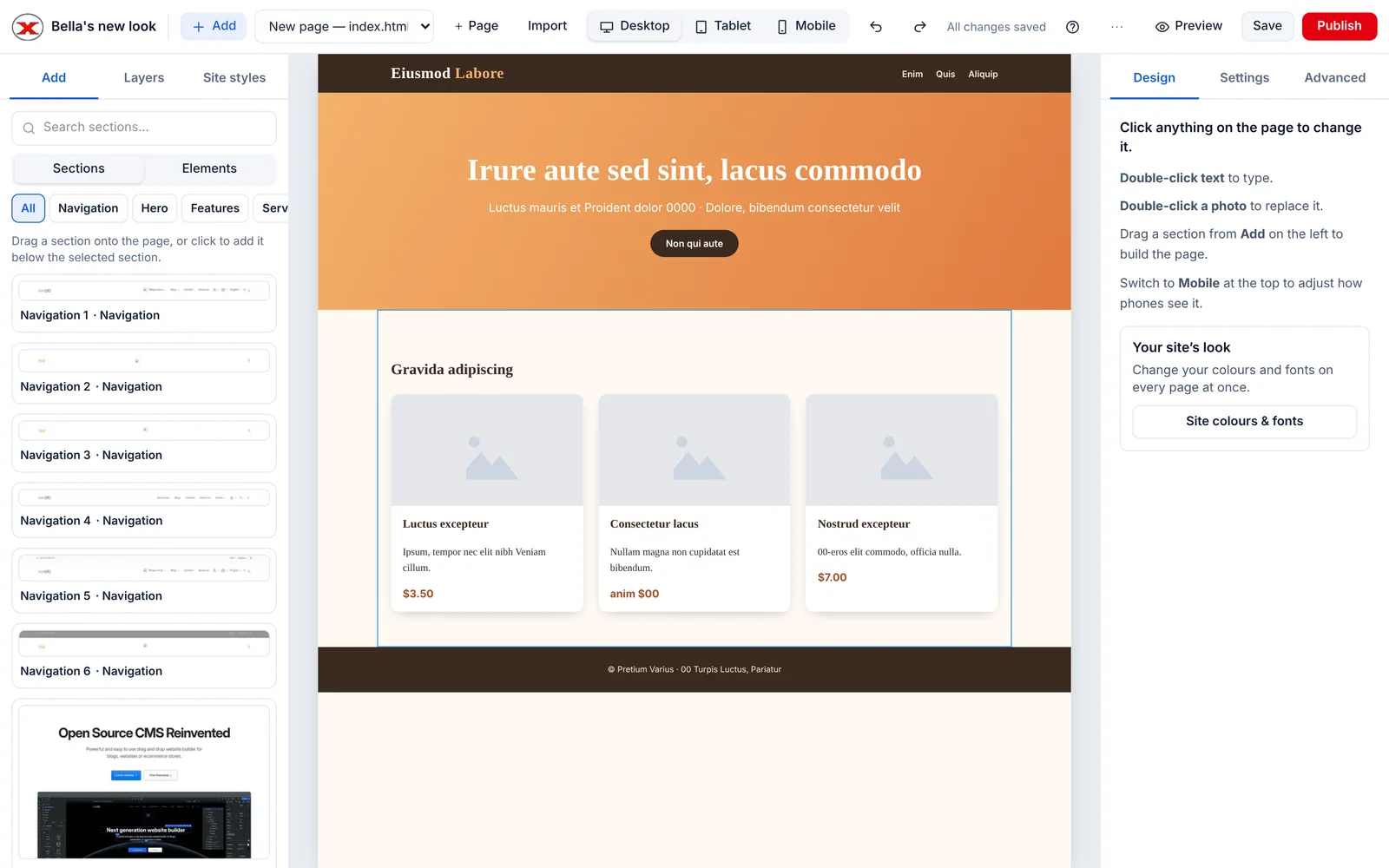
That's expected — photos are swapped for placeholders so the page is your own. Double-click each one to upload your own photo.
On a copied or imported site
Some websites protect their images, load them in unusual ways, or block copying. If an image didn't come across:
- Save it from the original site (if you have the right to use it), or use your own.
- In the editor, double-click the empty image and upload it.
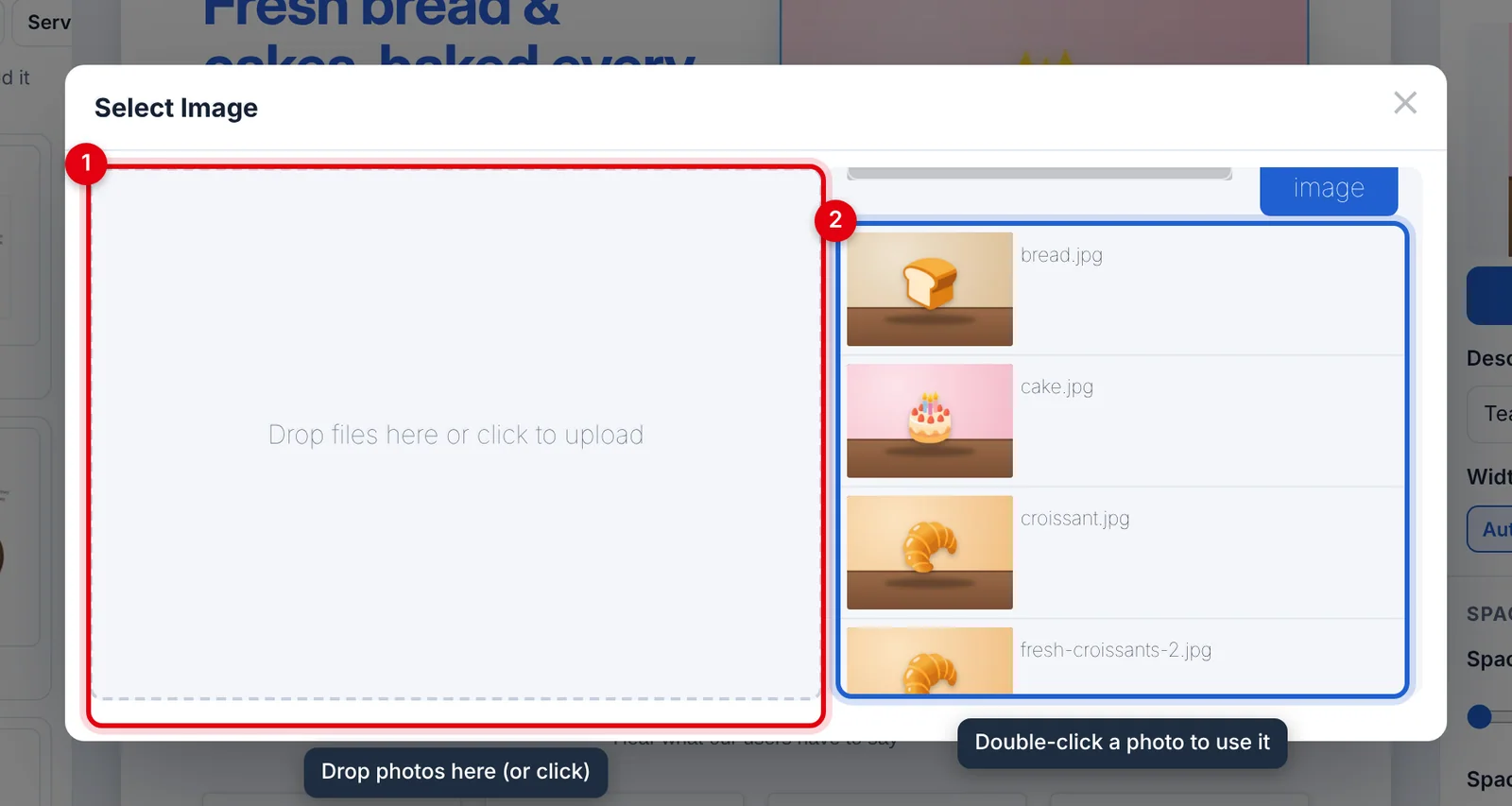
For a background image, select the section and use Design → Background → Change image. See Images and media.
For an imported .zip, check the images were inside the .zip, in the folders the pages expect. Images linked from another website only show if that website allows it.
Upload fails
- Files must be under 25 MB each and 100 MB per upload.
- Check Settings → Plan & billing — if your storage is full, delete unused files or upgrade.
- Only pictures, video, audio, fonts and similar web files can be uploaded.
Shows in the editor but not on the live site
You probably haven't published since adding it. Click Publish. See Publishing your site.
Updated Nov 4, 2026, 2:59 PM
Didn’t find what you need? Contact support.