Publishing your site
Make your changes visible to visitors, and take a site offline again.
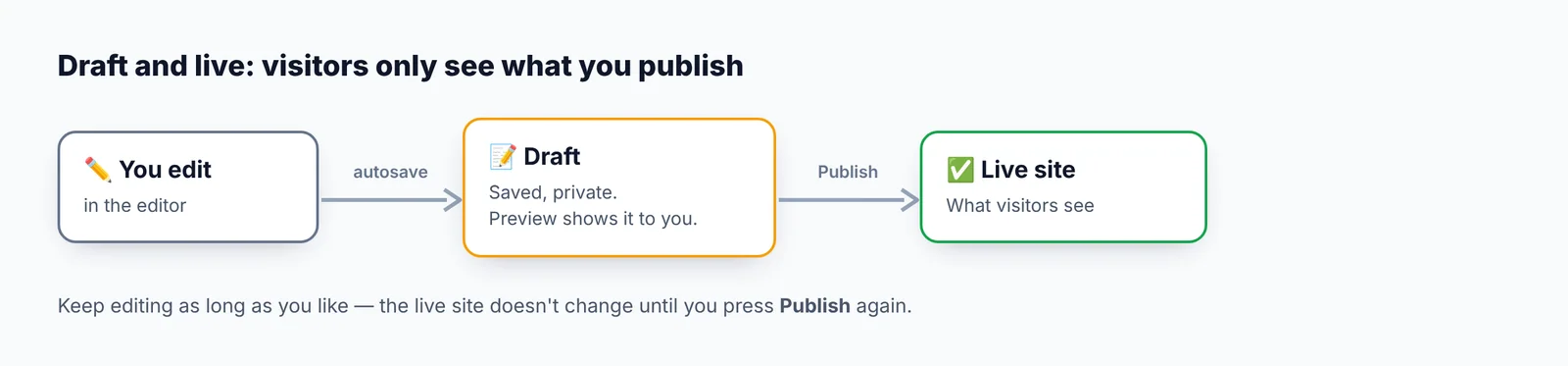
Your edits are saved as a draft. Visitors see the published version, which only changes when you publish.
Publish
Either:
- Click Publish in the editor toolbar (it saves first), or
- Click Publish site (or Publish changes) on the site's page (Manage).
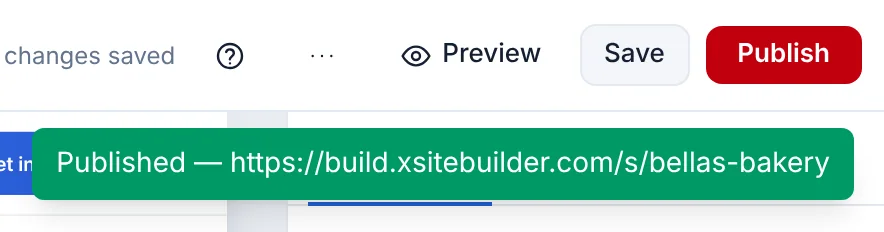
Publishing makes all pages of the site live at once, and the site gets a green Live badge.
Unpublished changes
After the first publish, the site's page tells you when there are saved changes that visitors can't see yet:
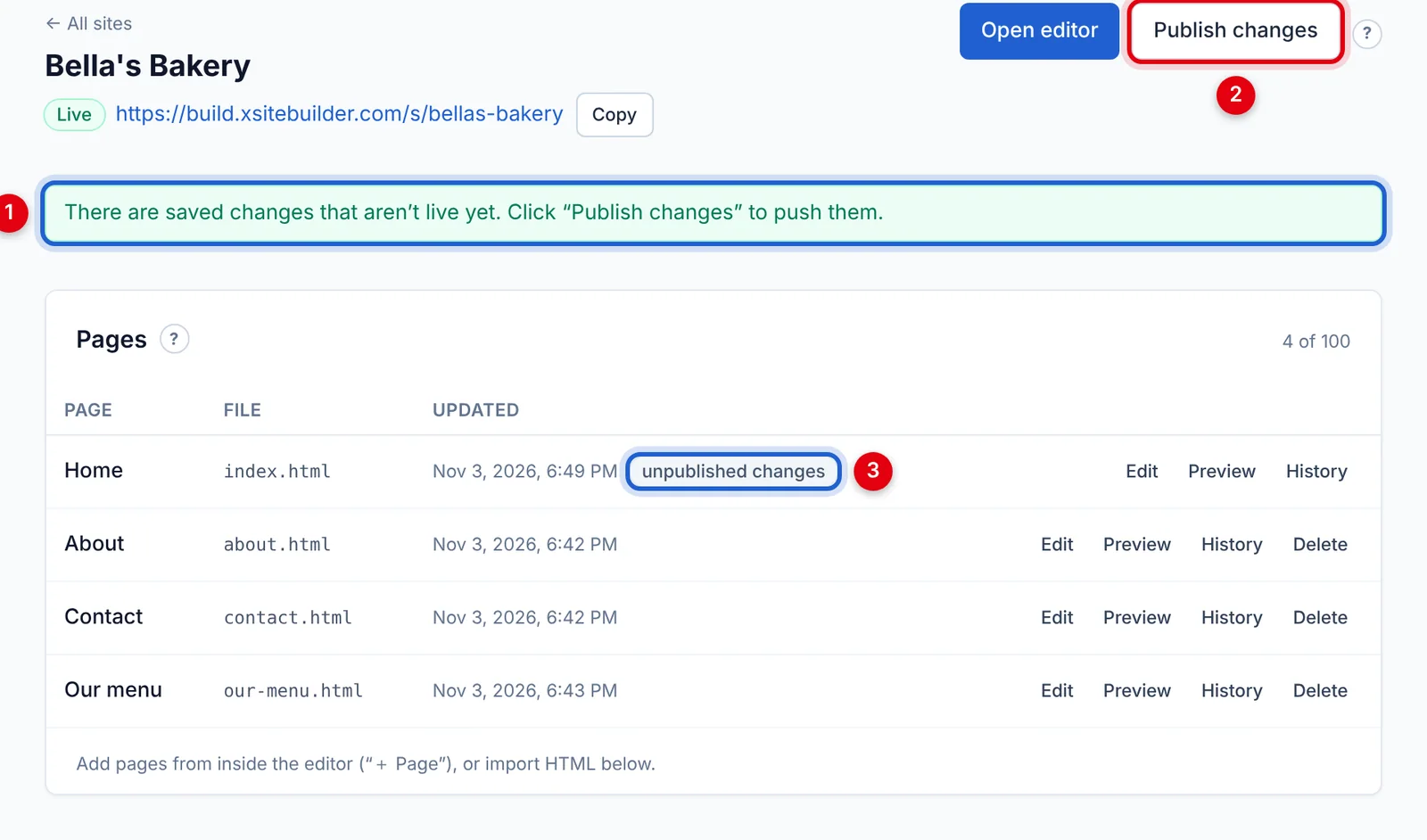
- A reminder that some changes aren't live yet.
- Publish changes puts them live.
- Each changed page is marked unpublished changes.
Take a site offline
On the site's page, under Danger zone, click Unpublish. Visitors will see "not found"; your drafts are kept and you can publish again any time.

A custom "page not found"
Add a page with the file name 404.html and publish. Visitors who follow a broken link will see it instead of the standard message.
Updated Oct 12, 2026, 7:47 PM
Didn’t find what you need? Contact support.