
Site colours and fonts
Change a colour everywhere it's used, or pick new fonts, on every page of your site at once.
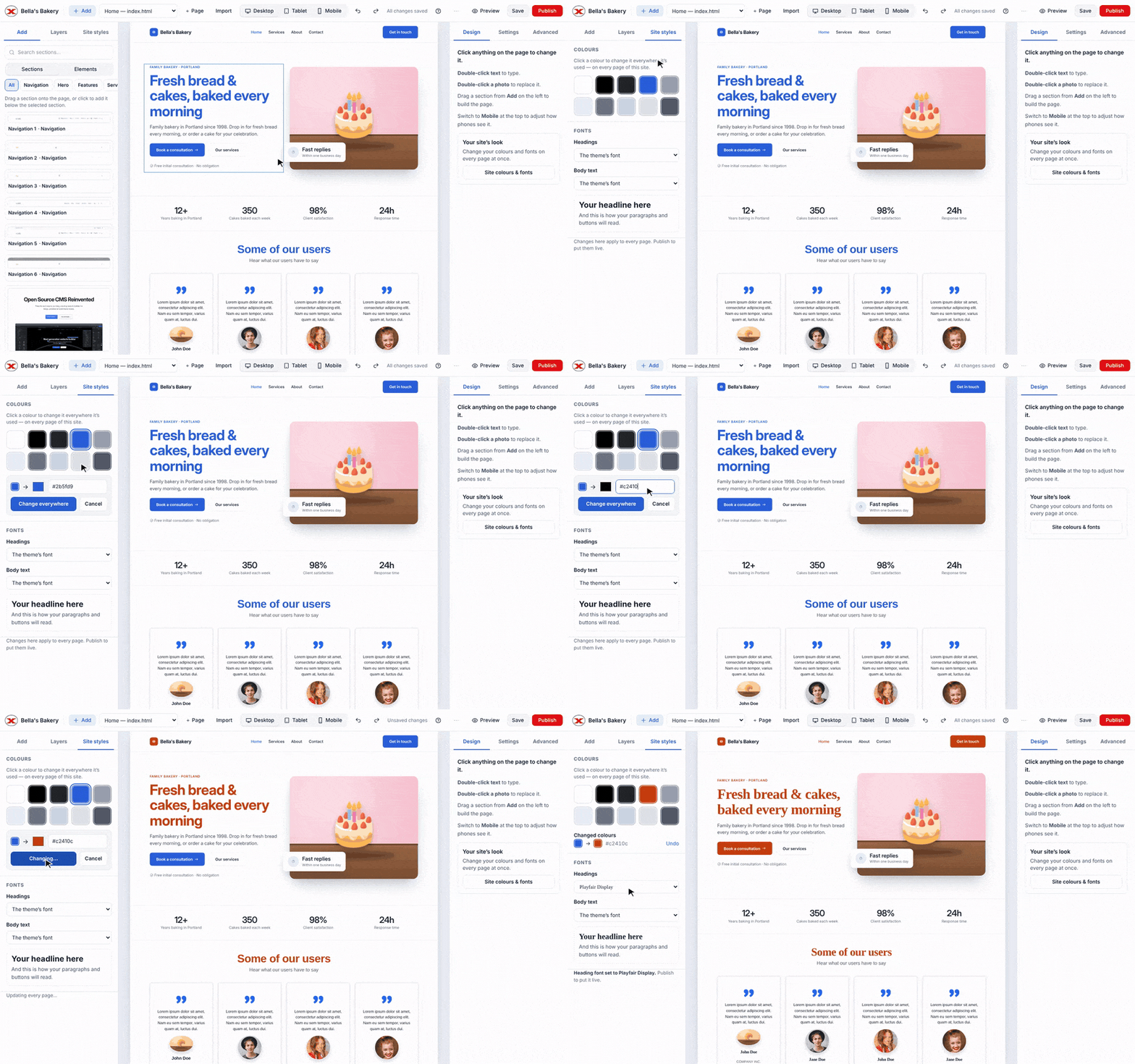
In the editor, open Site styles on the left. (With nothing selected, the Site colours & fonts button on the right opens it too.)
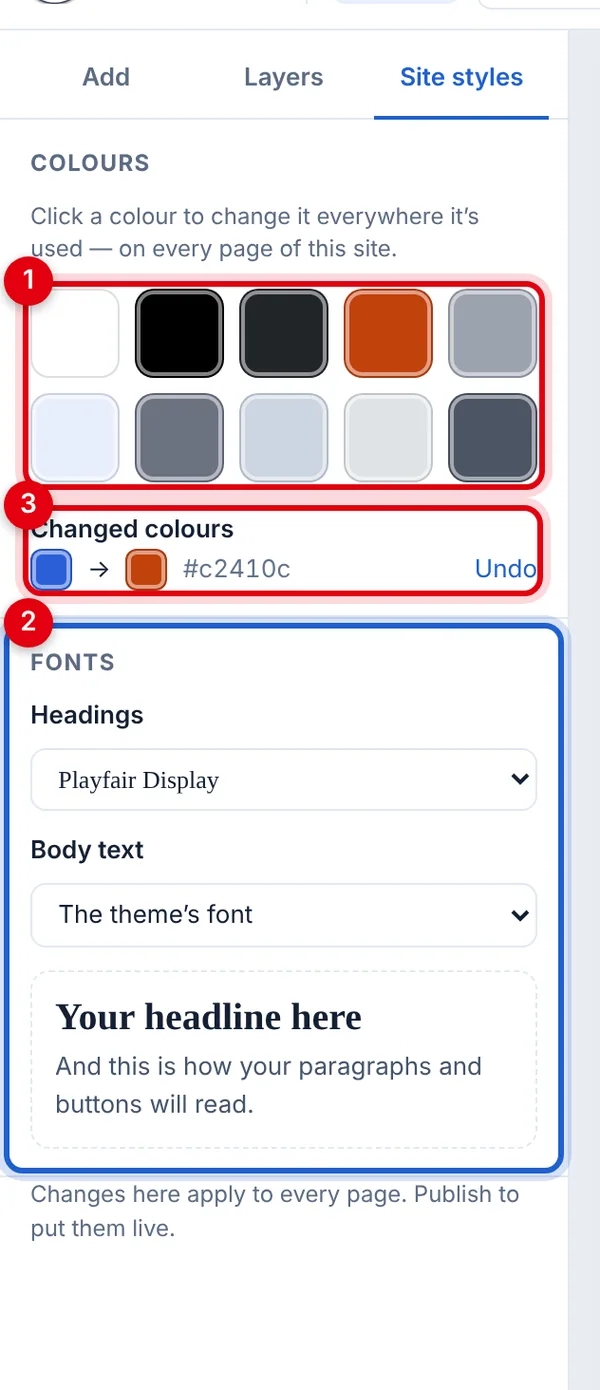
- Colours: the colours your site uses most.
- Fonts: one for headings and one for body text.
- Changed colours: what you've changed, with Undo.
Change a colour everywhere
- Click the colour you want to change, for example your brand blue.
- Pick the new colour, or type its code (like
#16a34a). - Click Change everywhere.
Every button, heading, link and background that used the old colour now uses the new one, on every page of the site. To go back, click Undo next to it under Changed colours.
Fonts
Choose a font for Headings and one for Body text (paragraphs, menus and buttons). There's a preview underneath. Choose The theme's font to go back to the original.
Good to know
- Changes save straight away and show on every page in the editor and in Preview. Your live site changes when you Publish.
- Anything you styled on a single item yourself (in Design or Advanced) keeps its own colour and font.
- Restoring an older version of a page from its history keeps your current site colours and fonts.
Updated Nov 4, 2026, 2:59 PM
Didn’t find what you need? Contact support.