
Importing an HTML page or a .zip
Bring in a site or HTML template you already have, with its images, CSS and fonts.
You can import:
- A single .html page (up to 10 MB).
- A .zip of a whole website or an HTML template you've bought — up to 1 GB. Pages, CSS, JavaScript, images and fonts keep their folder structure, so links between them keep working.
From the site's page
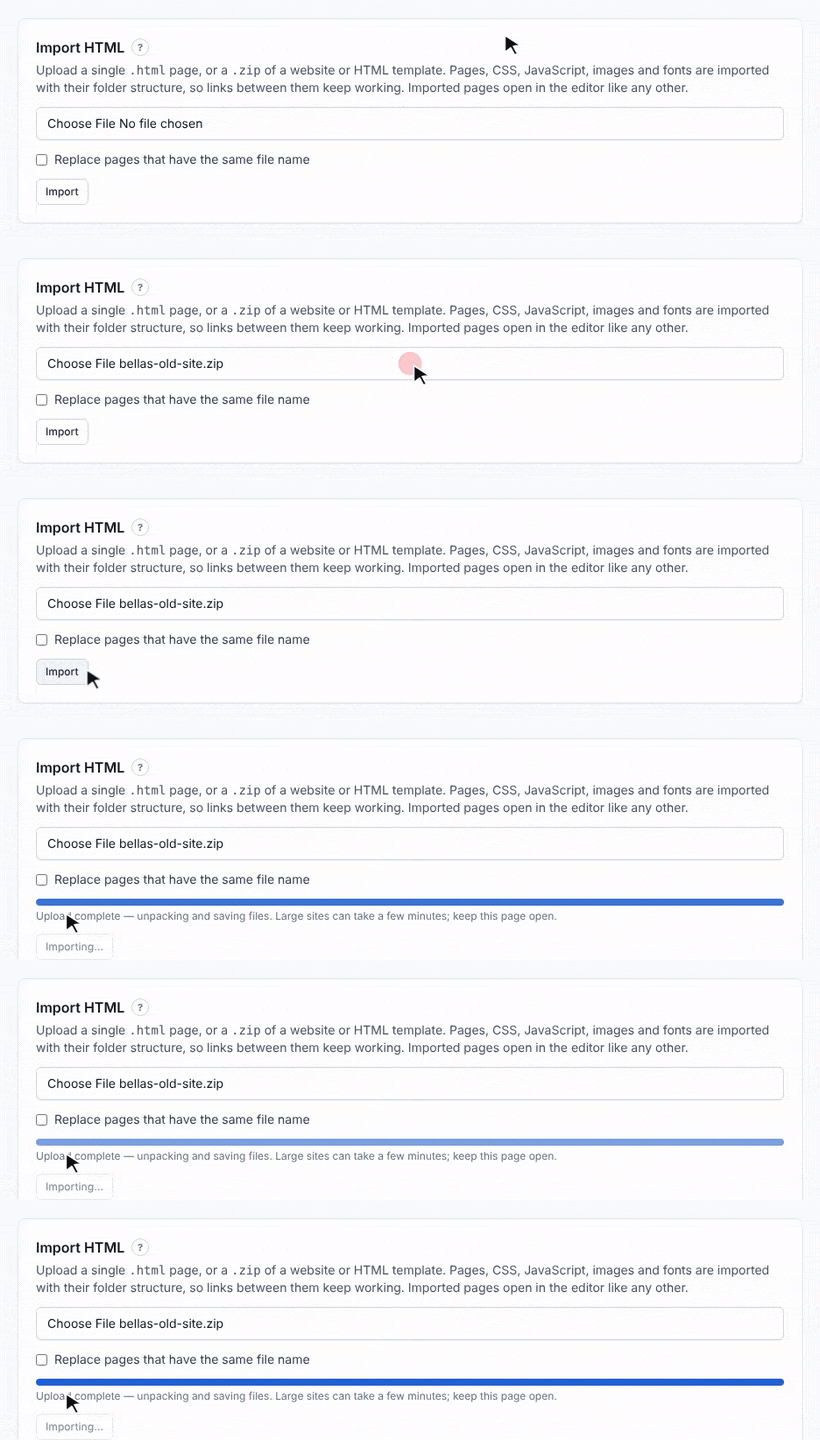
- Go to the site's page (Manage) and find Import HTML.
- Choose your file.
- Click Import.
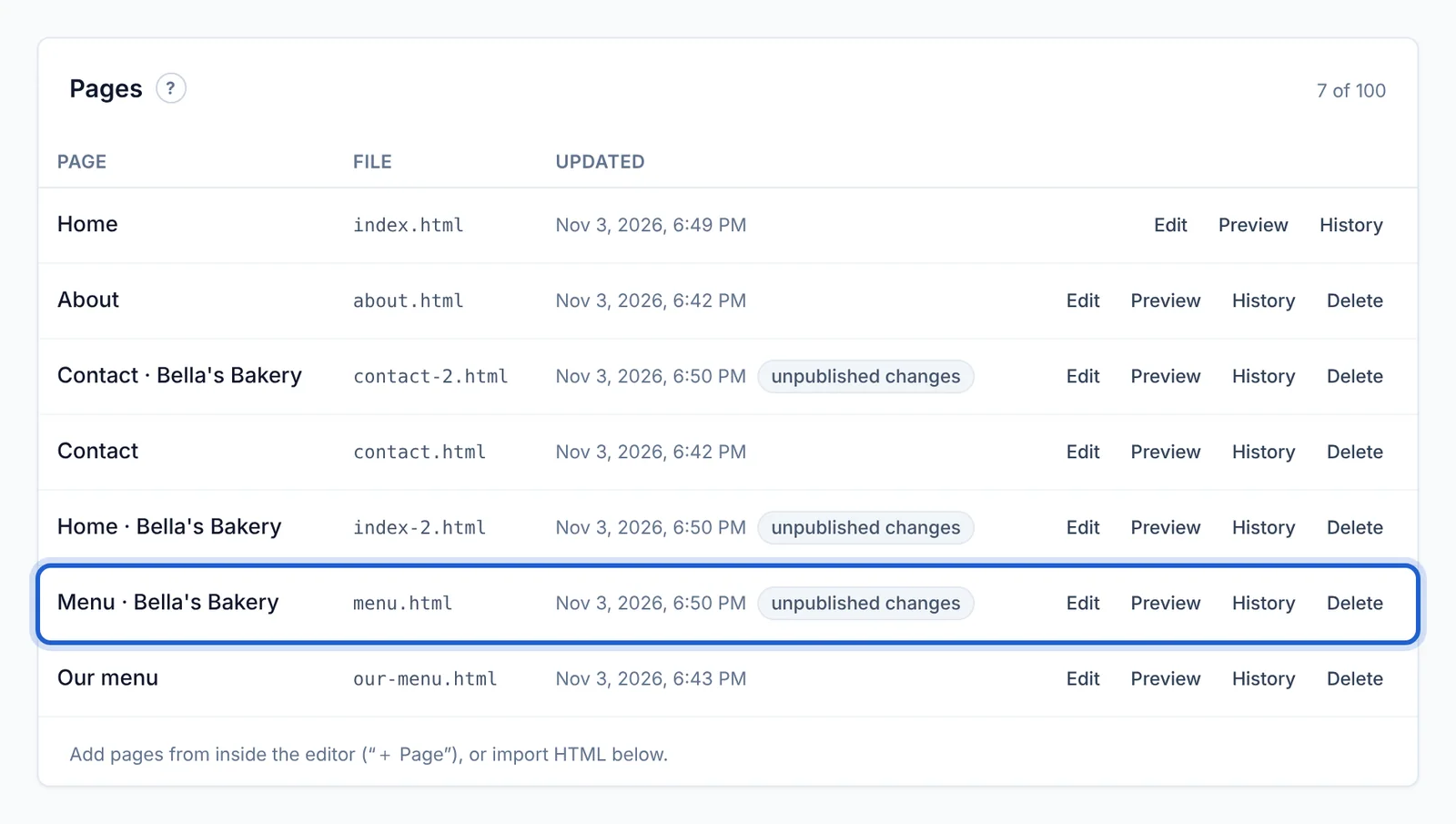
The new pages appear in the Pages list straight away:
From the editor
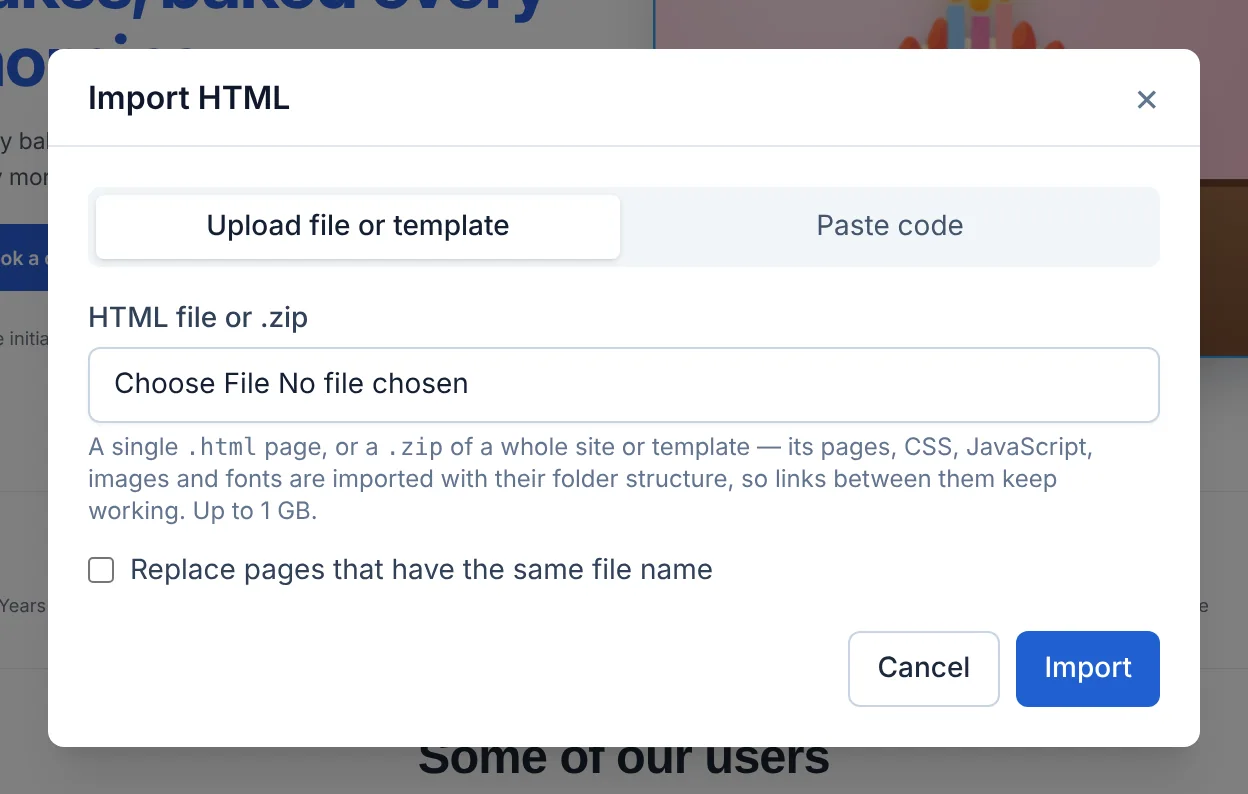
Click Import in the toolbar. Upload a file, or switch to Paste code to paste HTML (with optional <style> tags) straight into a page.
Pages with the same name
By default, if a page with the same file name already exists, the imported one is added alongside it with a number (e.g. about-2.html). Tick Replace pages that have the same file name to overwrite them instead — you can still get an old version back from History.
Tips for .zip files
- The .zip can hold the site at the top level or inside one folder — both work.
- Make sure the home page is called
index.html. - Pages count towards your plan's page limit, and files towards your storage. See Plans and limits.
If an import fails, see Import problems.
Updated Oct 12, 2026, 7:47 PM
Didn’t find what you need? Contact support.