
Saving, autosave and version history
How your work is saved, and how to go back to an earlier version of a page.
Autosave
The editor saves your work a few seconds after you stop making changes. Keep an eye on the status in the toolbar, next to undo and redo:

- All changes saved — you're up to date.
- Unsaved changes — a save will happen in a moment.
- Saving…
- Save failed — check your internet connection, then click Save.
You can save any time with Save or Ctrl/⌘ + S. If you try to close the tab with unsaved changes, your browser warns you.
Saving never changes your live site — only Publish does. See Publishing your site.
Version history
Each page keeps its last 30 saved versions.
- Go to the site's page (Manage).
- Click History next to the page.
- Click Restore next to the version you want.
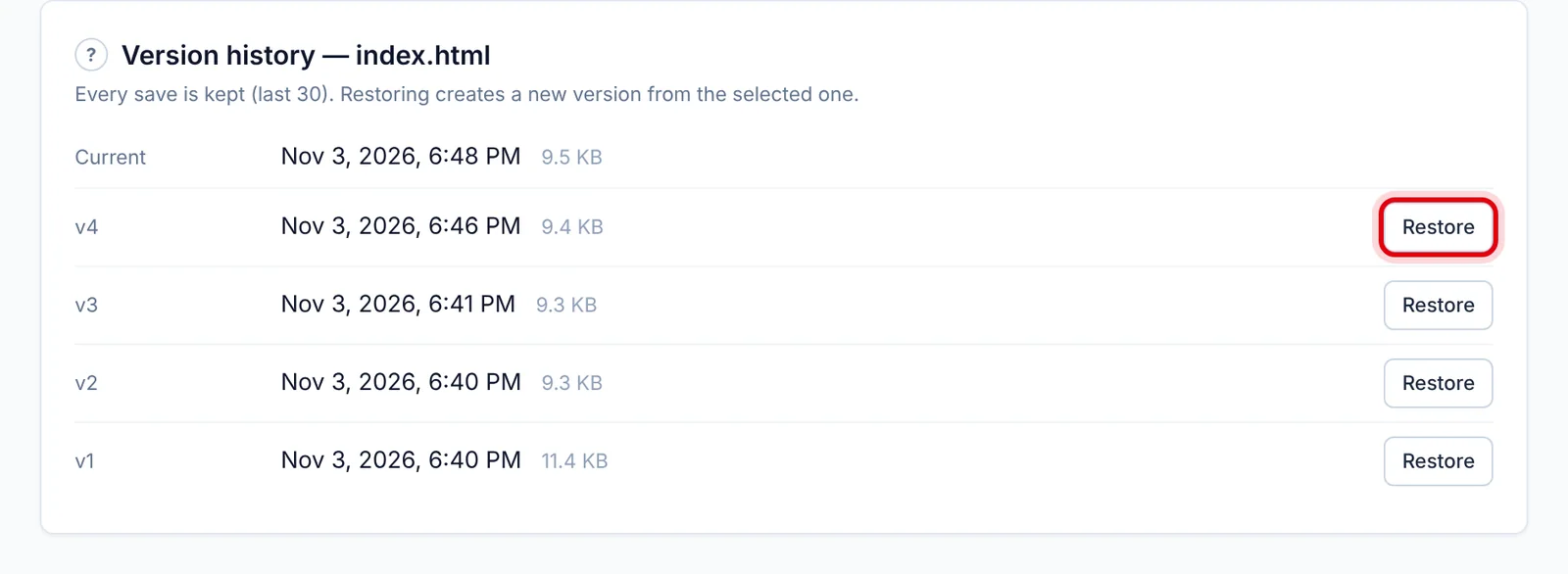
The restored version becomes your current draft — nothing is lost, the version you replaced stays in the list. Publish when you're happy with it.
Updated Nov 4, 2026, 2:59 PM
Didn’t find what you need? Contact support.