Copying a website
Bring in pages from a web address — your own existing site, or a layout to start from.
Only copy websites you own or have written permission to use. Text, photos, logos and designs on other people's websites are protected by copyright and trademark law. Every copy is recorded with your account and the address you copied.
Watch it in action:
Where to find it
- As a new site: on the Sites page, open Copy a website on the right.
- Into an existing site: on the site's page (Manage), scroll to Copy a website.
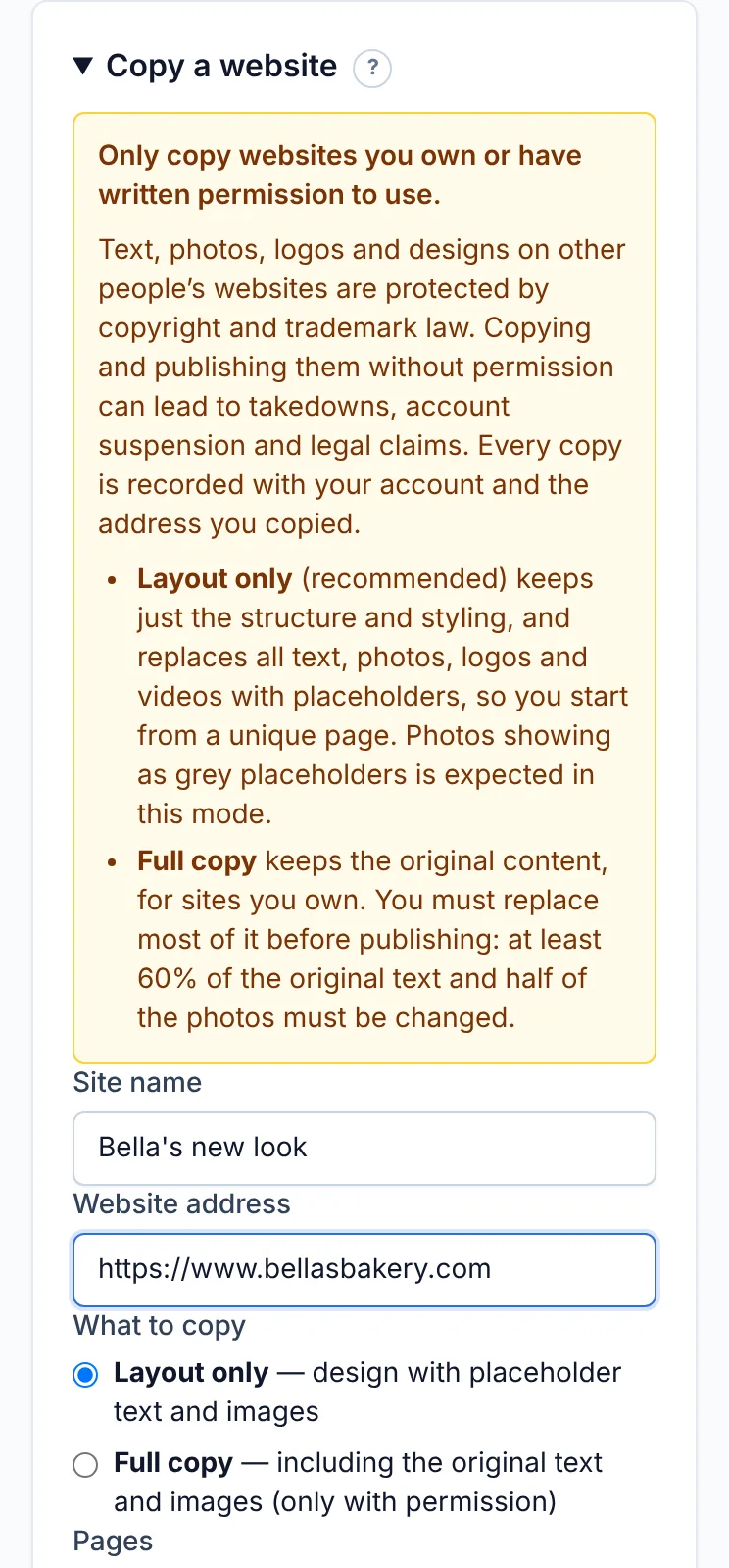
Choose what to copy
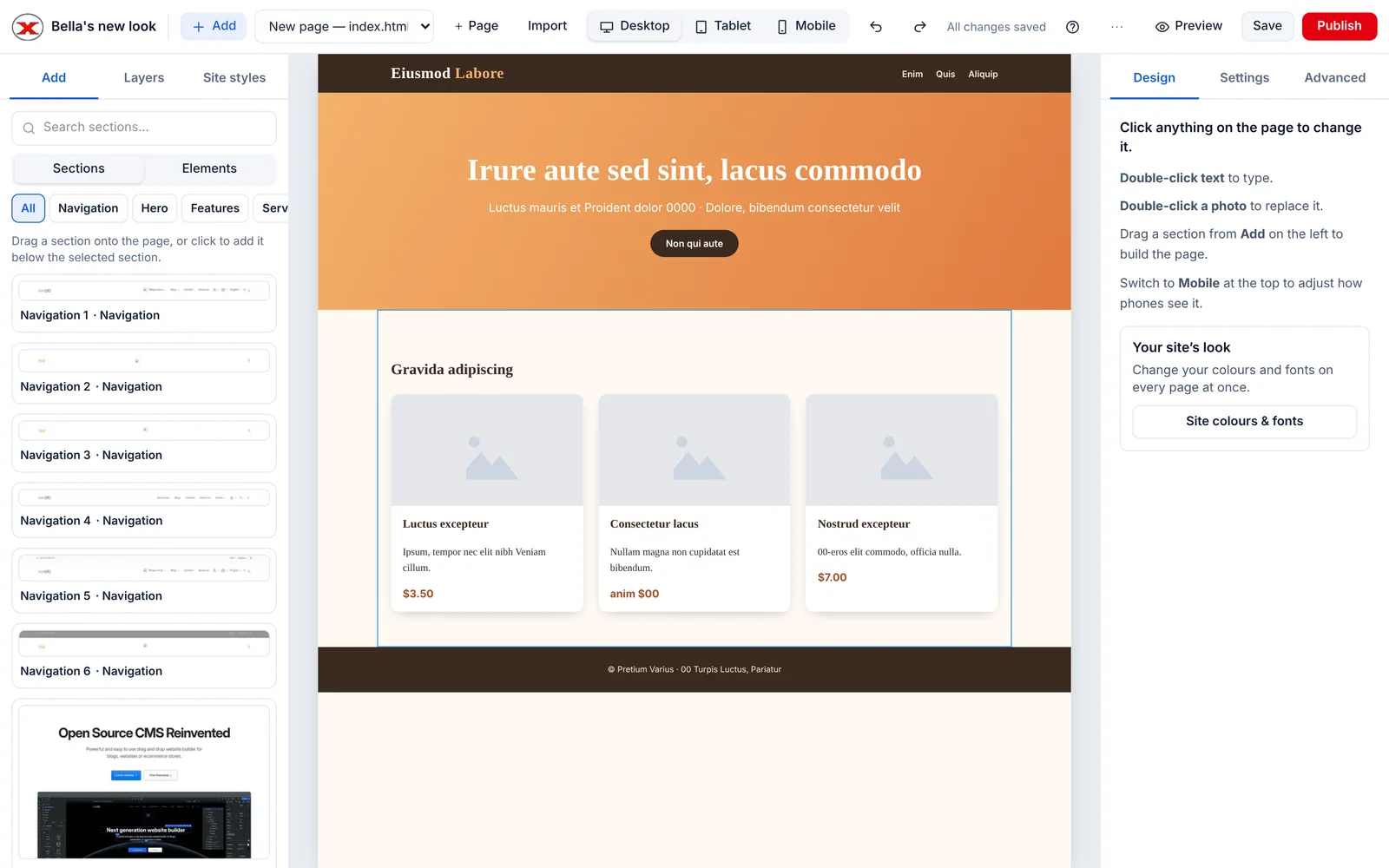
Layout only (recommended) keeps the structure and styling, and swaps all text, photos, logos and videos for placeholders — a unique page ready for your own content:
Full copy keeps the original content — for moving a site you own. You'll need to replace most of it before you can publish; see Making copied pages your own.
Choose how many pages
Pages copies just the address you entered, or that page plus up to 19 pages it links to (20 in total), starting with the main menu.
Tick the box to confirm you have permission, then click Copy into a new site (or Copy website). It takes from a few seconds to a few minutes for big sites — keep the tab open.
What can't be copied
- Things that run on the website's own server: shop checkouts, logins, search, booking systems and databases. You get how they look, not how they work.
- Content that only appears after scrolling or clicking may be missing.
- Some sites block copying altogether.
Pictures missing? See Missing images.
Didn’t find what you need? Contact support.