
Images, videos and your media library
Replace pictures, upload your own photos, and set background images.
Replace a picture
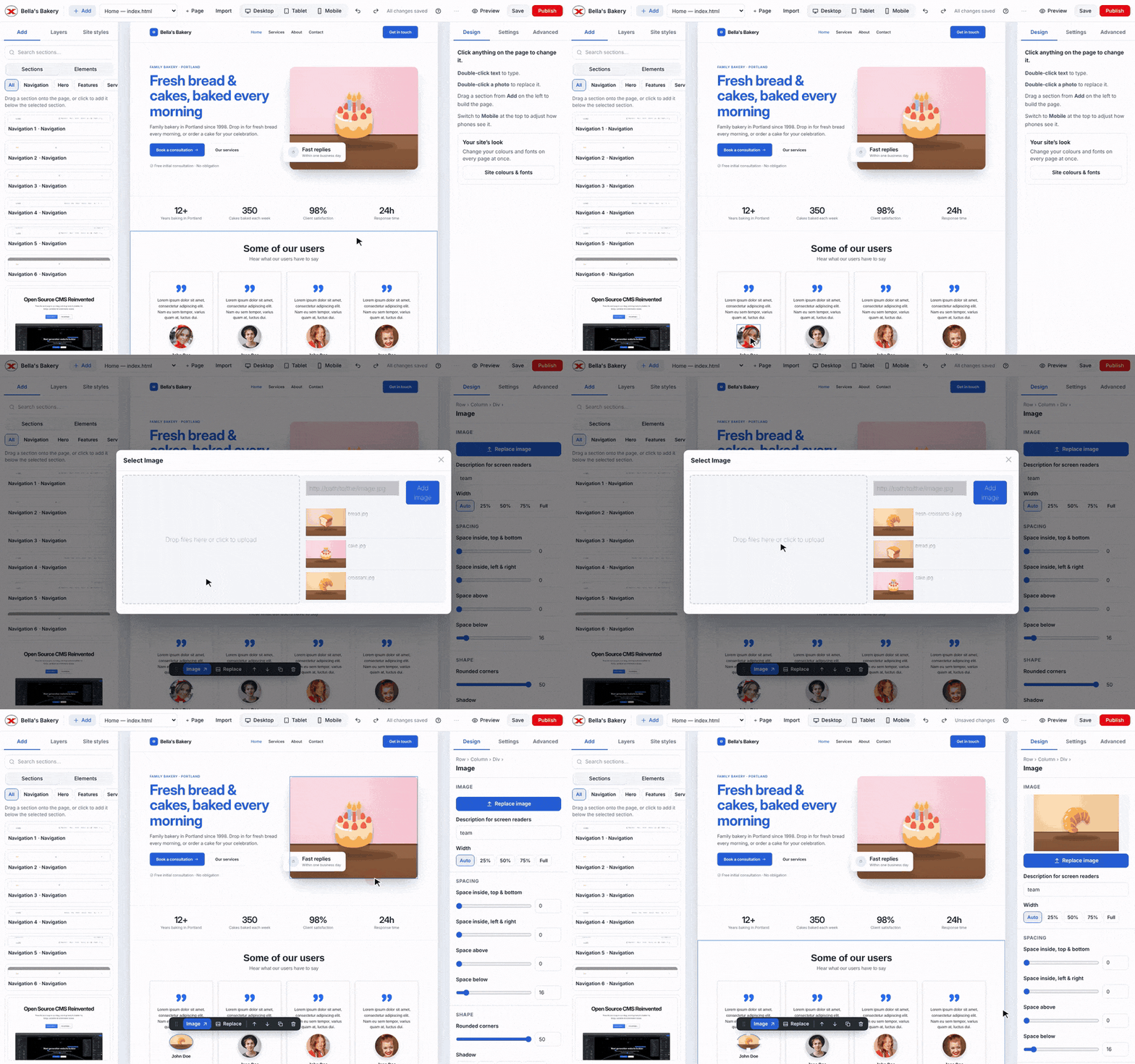
- Double-click the picture on the page (or select it and click Replace on its toolbar). Your media library opens.
- Drop photos onto the upload area (or click it to choose files).
- Double-click the photo you want to use.
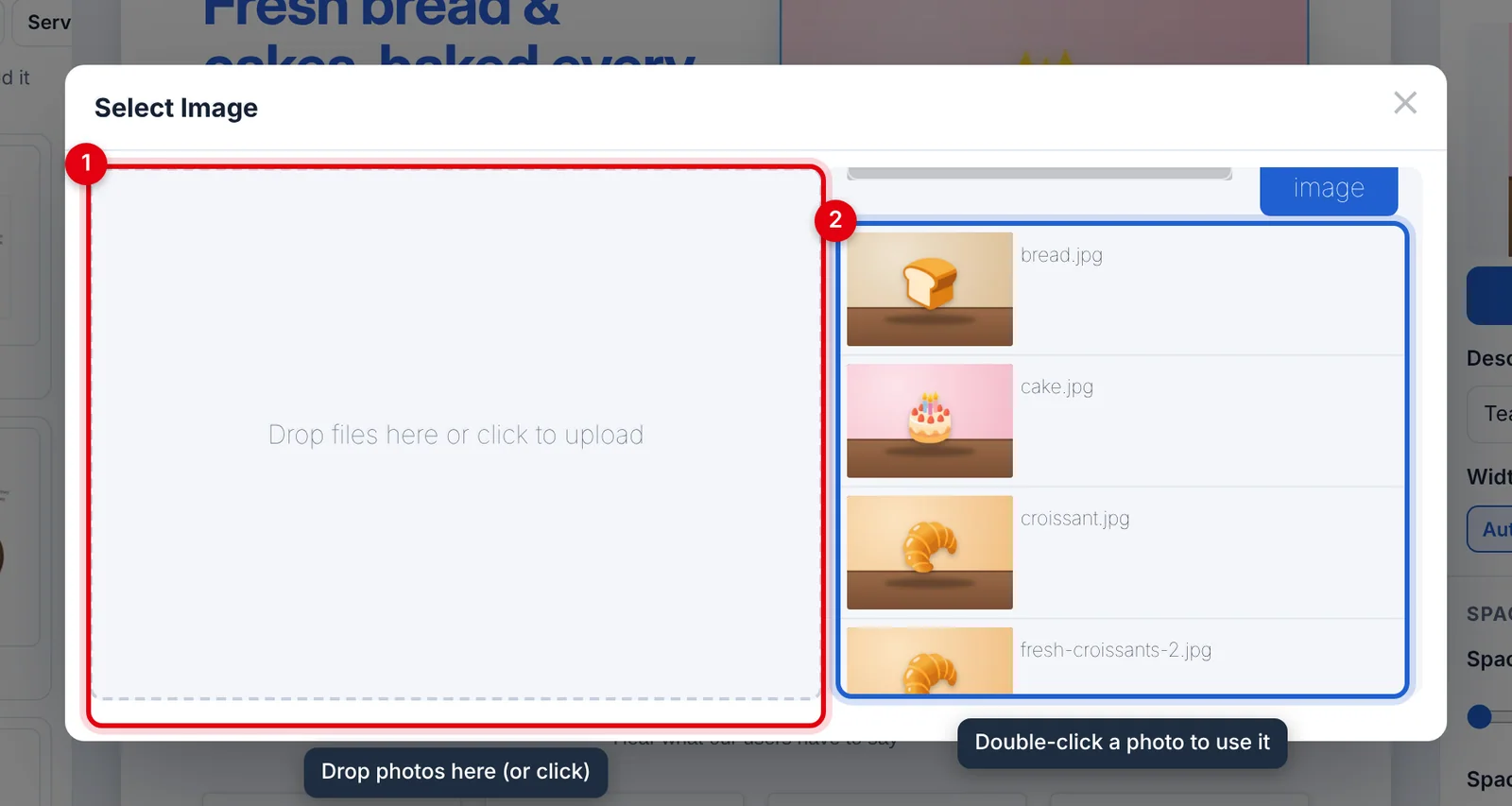
- The upload area.
- Your site's photos — reuse them on any page of the site.
Upload limits
- Up to 25 MB per file and 100 MB per upload.
- Your total depends on your plan's storage.
- JPG, PNG, GIF, WebP and SVG pictures, MP4 and WebM videos, audio and fonts are all fine.
Big photos slow your site down. For most websites, photos about 2000 pixels wide and under 500 KB look great. Free tools like Squoosh or TinyPNG can shrink them.
Background images
Many sections use a background picture rather than a normal one. Select the section and, in Design → Background, click Add image (or Change image). Remove takes it away again.
Picture descriptions (alt text)
Select a picture and fill in Description for screen readers in Design → Image. It also helps search engines understand the picture.
Video
Add Video from Add → Elements, then open Settings on the right to choose an uploaded video or paste a YouTube or Vimeo link.
Updated Nov 4, 2026, 2:59 PM
Didn’t find what you need? Contact support.