Inviting your team and roles
Add teammates or clients to a workspace, and choose what they can do.
Roles
| Role | Can do |
|---|---|
| Owner | Everything, including billing. Each workspace has one owner. |
| Admin | Manage sites, settings and team members; publish. |
| Editor | Create, edit and publish sites and pages. |
| Viewer | Look at sites and previews only — can't make changes. |
Invite someone
Go to Settings → Team:
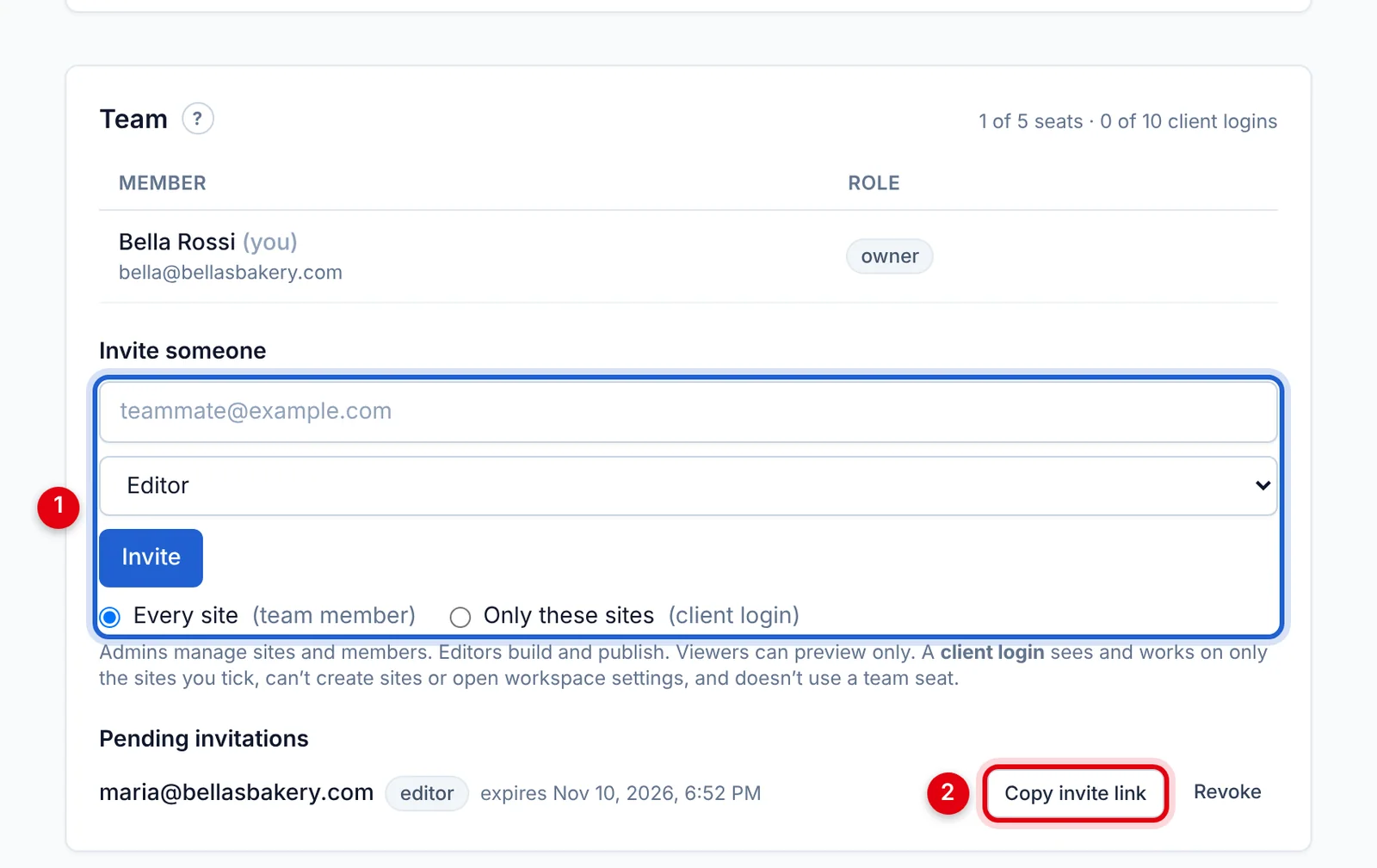
- Under Invite someone, enter their email address, choose a role and click Invite.
- Under Pending invitations, click Copy invite link and send the link to them yourself — by email, chat or text.
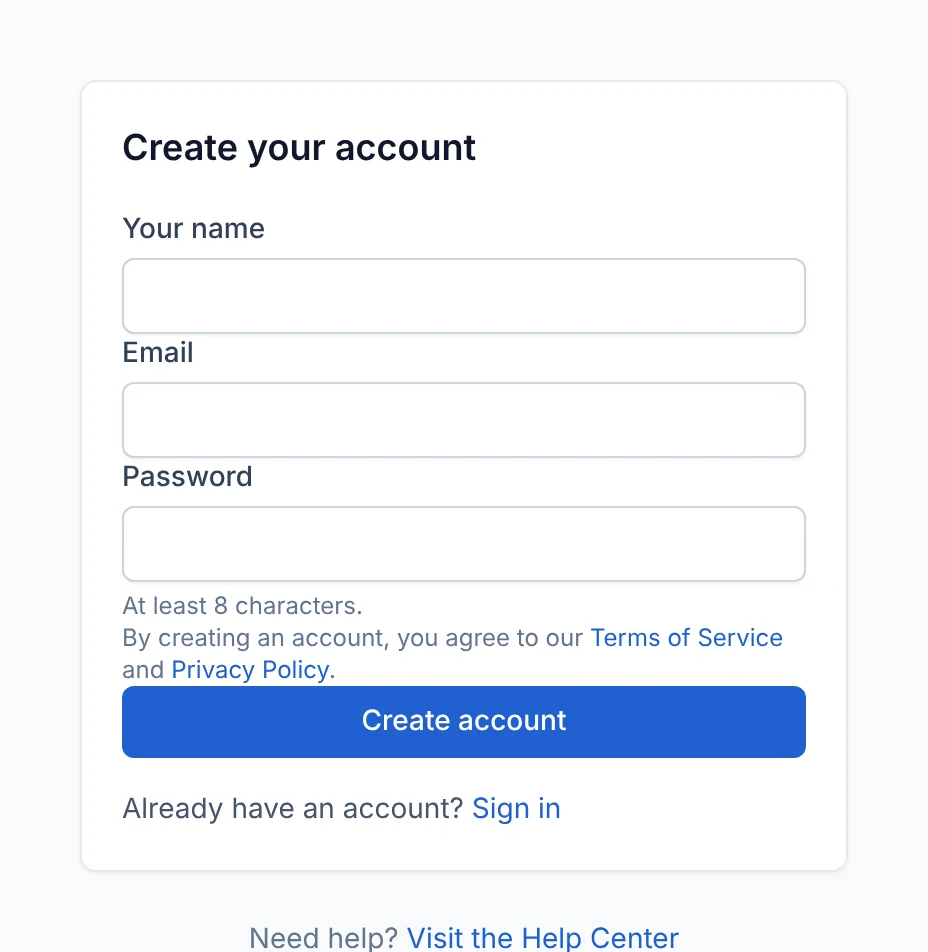
When they open the link, they sign in or create an account with the email address you invited, and join the workspace. Invite links work for 7 days; Revoke cancels one.
How many members you can have depends on your plan.
Change a role or remove someone
In the Team list, pick a new role and click Update, or click Remove. To leave a workspace yourself, click Leave next to your own name.
Give a client their own login (Pro and Agency)
Building sites for clients? Give each client a login that opens only their own site:
- Under Invite someone, enter the client's email address and choose Editor (they can edit and publish) or Viewer (preview only).
- Choose Only these sites (client login) and tick their site.
- Click Invite, then copy the invite link and send it to them.
A client login:
- sees only the sites you ticked, under Your sites;
- can't create sites, see your other clients' sites, or open workspace settings, team or billing;
- doesn't use one of your team seats. You can have up to one client login per site your plan allows (10 on Pro, 100 on Agency).
To change which sites someone can open, click Change site access under their name in the Team list. Choose Every site to make them a full team member again.
Contact-form messages go to the workspace owner by default. To send a client's form messages to them, put their email address in the site's Settings → Send form messages to.
Didn’t find what you need? Contact support.