Adding and managing pages
Add pages, switch between them, link them together, and delete the ones you don't need.
Add a page
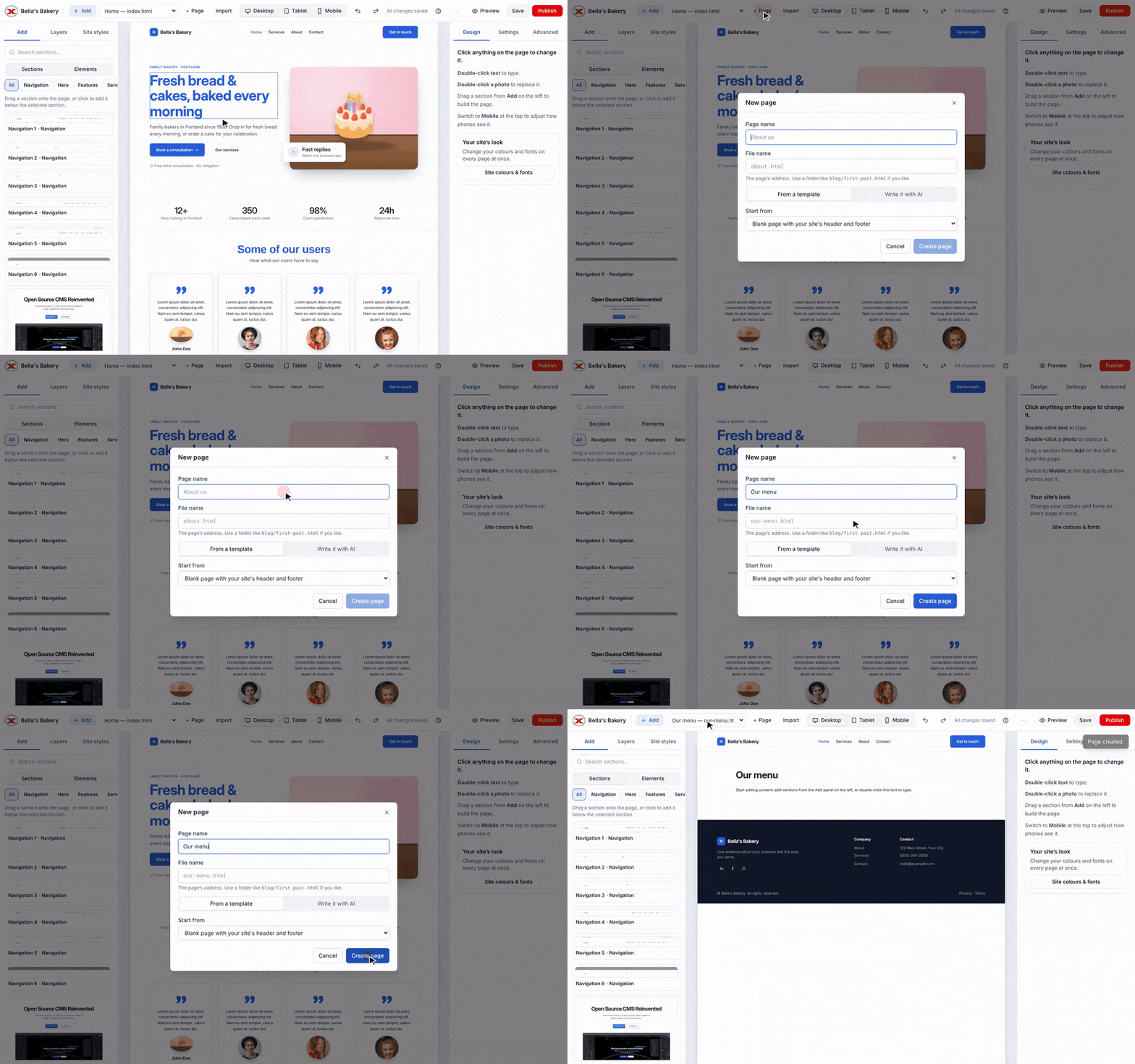
- In the editor, click + Page.
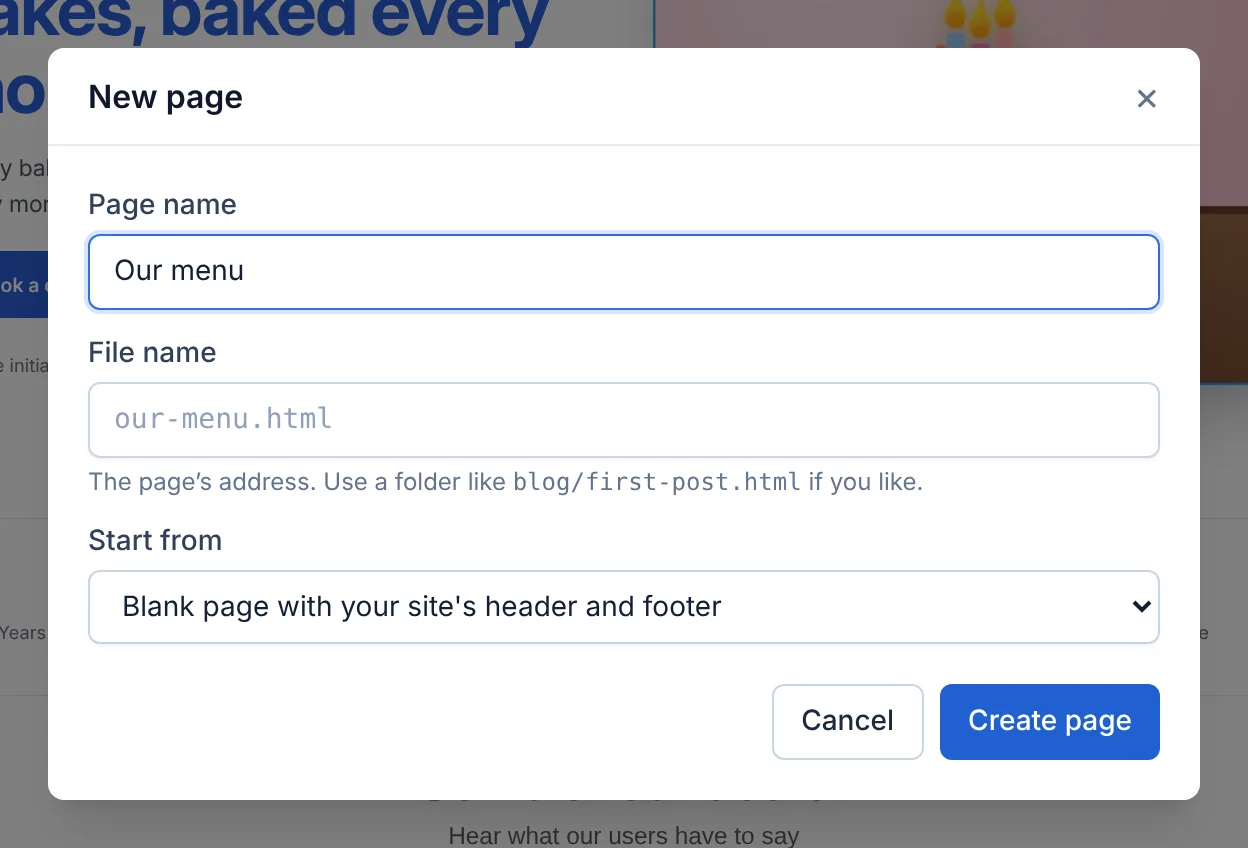
- Page name — what you call it, e.g. "Our menu".
- File name — the page's web address. Leave it blank to make one from the name (
our-menu.html), or use folders, likeblog/first-post.html. - Start from — the first option, Blank page with your site's header and footer, gives you an empty page that already matches the rest of your site. You can also start from a template, or write it with AI.
- Click Create page.
Switch pages
Use the page menu at the top left of the editor. Unsaved changes are saved before switching.
Link pages together
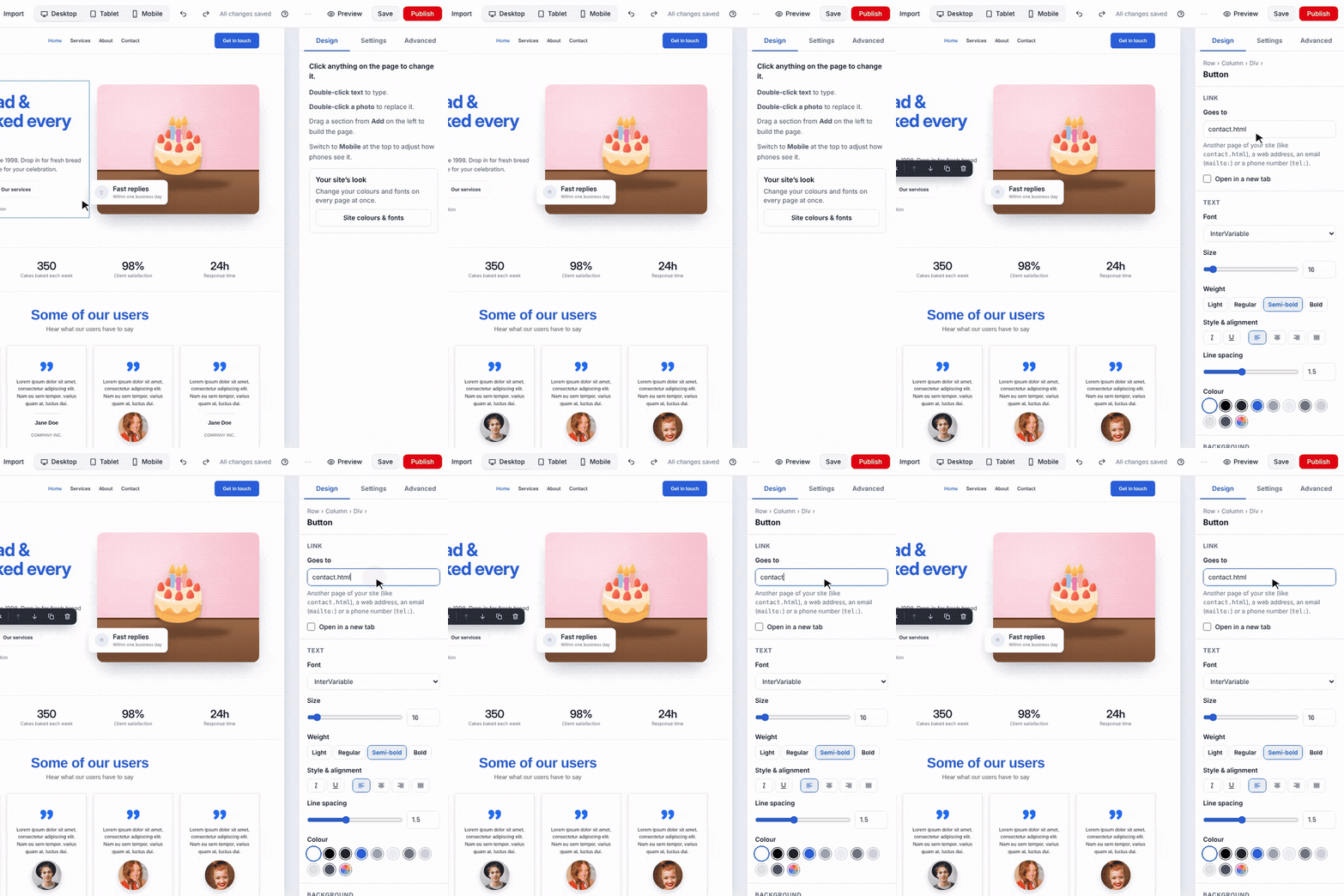
- Select the link or button (or select some text and click the link button on the text toolbar).
- In Design → Link, type the page's file name, e.g.
contact.html(orindex.htmlfor the home page), and press Enter.
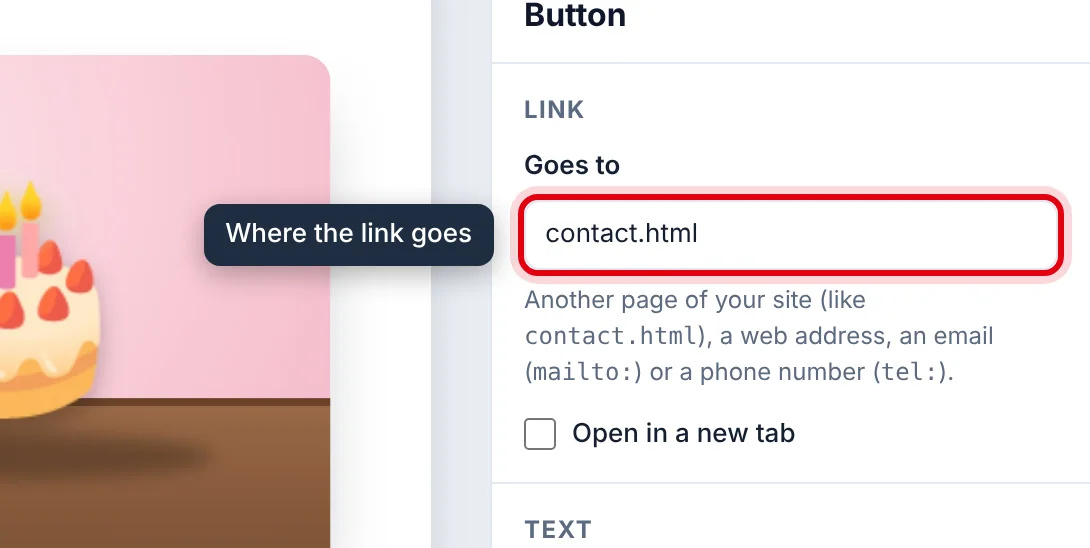
To link to another website, type its full address starting with https://, and tick Open in a new tab if you like.
See, edit or delete pages
Every page is listed on the site's page (Manage):
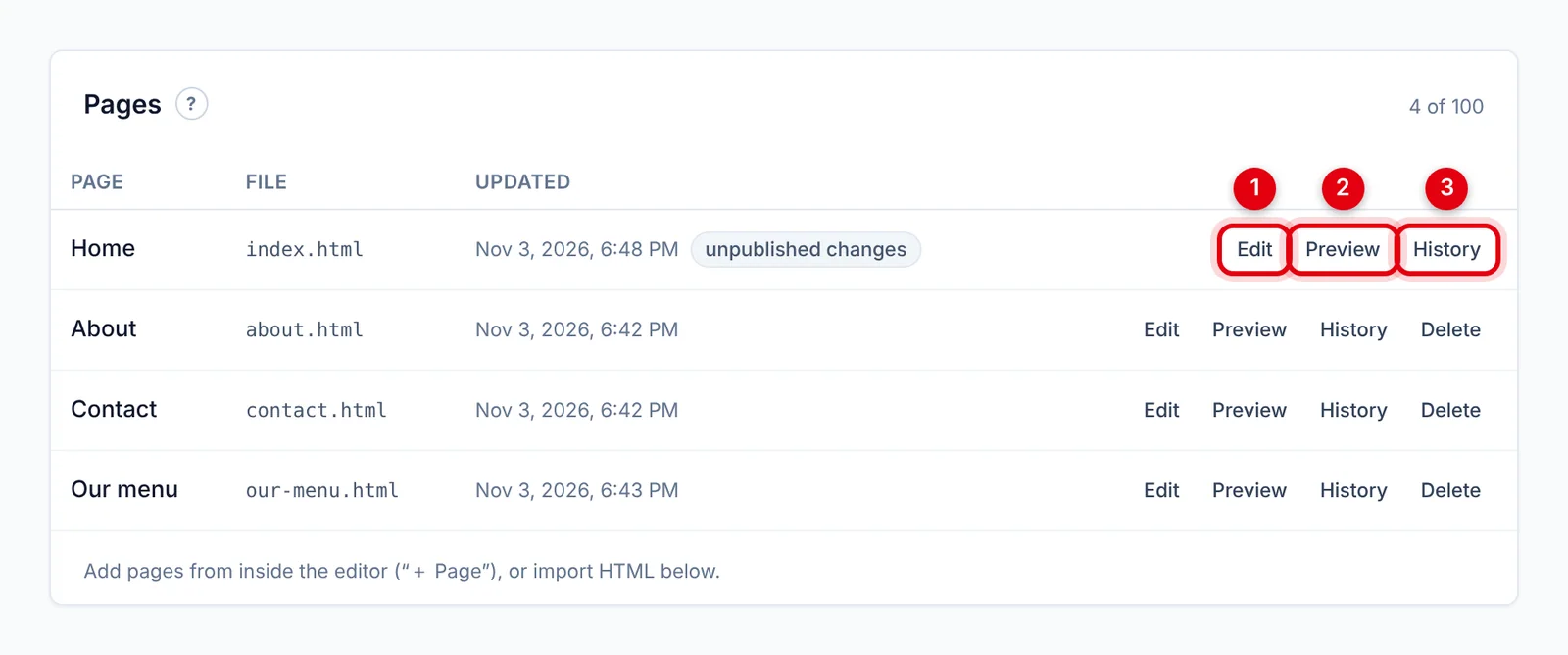
- Edit — open it in the editor.
- Preview — see your latest draft.
- History — earlier versions (more).
Delete removes a page for good. The home page (index.html) can't be deleted. Remember to remove links to a deleted page from your menus.
How many pages you can have depends on your plan.
Updated Nov 4, 2026, 2:59 PM
Didn’t find what you need? Contact support.